
How to create and use agents
Open the builder, describe one job, try a real example, then publish. The agent stays cheap because it is built for that job—not a general chatbot you have to prompt forever.
AshnaAI
How this is different
Most “agent” products are a chatbot with a long prompt, or a workflow tool that needs someone to wire every step. You pay for a general assistant that talks about the work, then you still do the work.
AshnaAI starts from the job. You say what the agent should do. The builder turns that into a focused agent and only attaches tools that already exist on the platform—mail, files, your site, accounts you can sign in to. It will not invent a connector you do not have.
That is why the agent stays cost-effective and accurate. One job means fewer wasted runs. The right tools mean answers come from your process, not a generic script. You publish when a real example works—not when a prompt looks clever.
Step 1: Open the builder
Go to https://app.ashna.ai/create/agent. New accounts start at app.ashna.ai/signup.
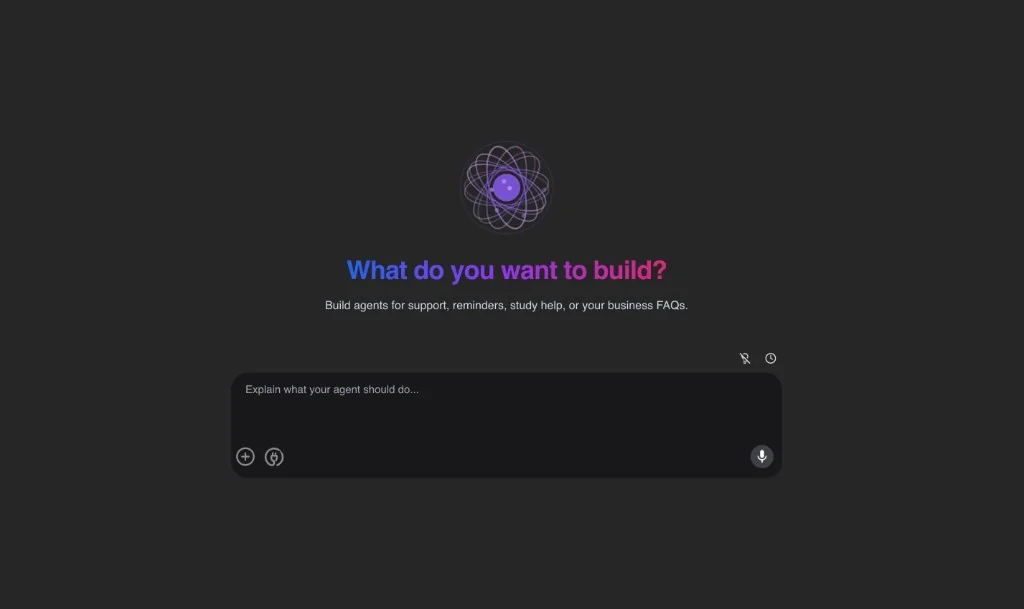
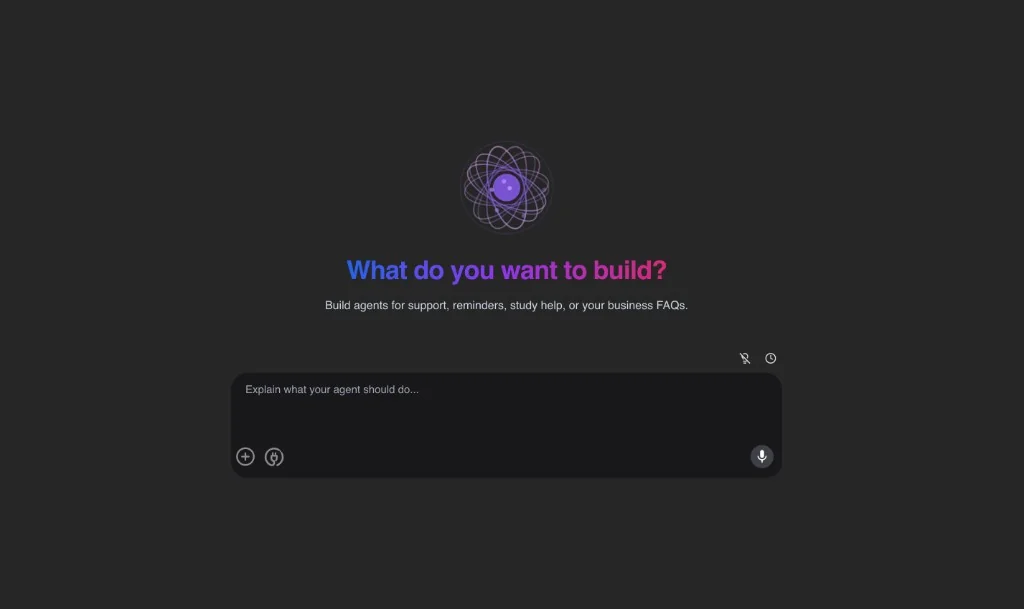
You should see “What do you want to build?” and a box that says “Explain what your agent should do...”
Step 2: Describe the agent you want
Write one job. Name who it is for, what they ask, and what a good result looks like. You can type or use the microphone.
- Good: “Answer campus FAQs from our brochure and tell the student which form to open next.”
- Good: “Qualify inbound leads from the website form and draft a follow-up.”
- Bad: “Be my entire company.”
Step 3: Review the tools and try it
The builder proposes tools for that job. Keep only what you can sign in to. If a login is requested, finish it before you test.
Ask what a real customer would ask. If the agent misses something you already said, say it once and tighten the description. Do not add a second job yet.
Step 4: Publish
When the example looks right, click Publish. The agent lands in My Agents. From there you can chat with it, set a schedule, or put it on your website.
Try it now
Open https://app.ashna.ai/create/agent and describe one job. New accounts start at app.ashna.ai/signup.
Frequently asked questions
- How do I create an agent?
- Go to https://app.ashna.ai/create/agent describe one job, review the tools, try a real example, then click Publish.
- Do I need to write code?
- No. Write the job the way you would brief a colleague.
- What makes this cheaper than a custom bot?
- You are not buying a build-out. One focused agent uses the tools it needs for that job. You are not paying a general chatbot to guess your process on every visit.
- What if the builder picks the wrong tool?
- Remove it and pick from the tools you can actually sign in to.
- How do I put the agent on my website?
- After Publish, open the agent menu and choose Embed on Website. See the embed guide.
Tags
Related
Try this in AshnaAI. Create a free account.
Found this article helpful? Share it with your network.