

Accounting · Desktop · For accountants
Tally automation
An AI accounting desk on TallyPrime: 1,000+ PDFs, Excel files, and images in 3 minutes; 1,000+ invoices with GST in 2 minutes; your own posting and ledger-mapping rules; GST reconciliation; and a 10,000+ file audit in 10 minutes.
Why accountants choose AshnaAI for Tally
- Built for CAs, accountants, bookkeepers, and finance teams who work in Tally — in India and worldwide.
- Describe the work once. AshnaAI reads the files, applies your rules, posts the books, and asks only when something is unclear.
- Process 1,000+ PDFs, Excel, XLSX, CSV, and images in one batch, in about 3 minutes.
- Process 1,000+ invoices and bills in about 2 minutes, with tax calculated and GST posted to IGST, CGST, and SGST.
- Create posting rules, such as “for all UPI transactions, post to Ledger UPI ledger,” and run them automatically.
- Map companies and ledgers with your conditions — group or sub-group (for example INSURANCE_GROUP), balance above or below a percent of X, or ledger name contains a string.
- Reconcile GST at scale with high accuracy. AshnaAI asks you instead of guessing when something is confusing.
- Audit 10,000+ files or companies in Tally in about 10 minutes, following the rules your CA or accountant provides.
- Delete protection and a 7-day backup are included, so a mistake does not become a client emergency. There is more beyond this list.
What you get
1,000+ files in 3 minutes
Process PDF, Excel, XLSX, CSV, and images together in one batch — not file by file.
1,000+ invoices in 2 minutes
Read invoices and bills from PDF, images, and other formats, calculate tax, and post GST ledgers such as IGST, CGST, and SGST automatically.
Your posting rules
Create rules like “for all UPI transactions, post to Ledger UPI ledger.” AshnaAI applies them on every run with no manual intervention.
Company and ledger mapping
If a transaction is from an insurance company, post it under a group such as INSURANCE_GROUP and pick the ledger by balance, name, or other conditions you set.
GST reconciliation at scale
Reconcile GST with high accuracy. When something is unclear, AshnaAI asks you instead of posting a guess.
10,000+ file audit in 10 minutes
Audit files and companies in Tally against the rules your CA or accountant provides — at firm scale, not sample size.
What you can do after connecting
- Process 1,000+ PDFs, Excel, XLSX, CSV, and image files at once in about 3 minutes
- Process 1,000+ invoices and bills in about 2 minutes, with tax calculation and GST ledger entries (IGST, CGST, SGST in India)
- Create transaction rules — for example, post every UPI payment to Ledger UPI ledger — and run them automatically
- Map companies and ledgers with conditions: group or sub-group (such as INSURANCE_GROUP), balance above or below a percent of X, ledger name contains a string, and more
- Reconcile GST at scale and ask you only when there is confusion
- Audit 10,000+ files or companies in Tally in about 10 minutes, following CA and accountant rules
- And more — including delete protection and a 7-day backup so work can be retrieved from before the action date
Jobs this connector supports
How-tos live on the blog. This page is only connect and setup.
GST and Tally facts
| Runtime | AshnaAI Desktop on the same Windows or Linux computer as TallyPrime |
|---|---|
| Tally settings | Both, Yes, and port 9000, with the company open |
| Writes | Confirm before irreversible posts. Delete protection and a 7-day backup are included. |
| GST returns | Not filed by AshnaAI. Posting and reconciliation only. |
| Not TallyIra | This is not Tally’s Docs by Ira plugin. |
| Setup | Connect steps live on /connectors/tally. Jobs live on /blogs/tally-automation. |
Before you start
- TallyPrime installed on a Windows or Linux computer
- AshnaAI Desktop on that same computer — download it from the AshnaAI download page
- The three Tally settings shown below (Both, Yes, port 9000)
- The company you want to work on, open in TallyPrime
- Your AshnaAI account
Set these three values in TallyPrime
Open Client/Server configuration, apply the values, save, and return to your company.
- TallyPrime acts as
- Both
- Enable ODBC
- Yes
- Port
- 9000
How to connect Tally
Download AshnaAI Desktop
Install AshnaAI Desktop on the computer that already has TallyPrime and keep it open. That is how AshnaAI works with your books without moving them off the machine.
Open Connectivity in TallyPrime
In TallyPrime, go to Help (F1) → Settings → Connectivity. Shortcut: F1, then S, then N.
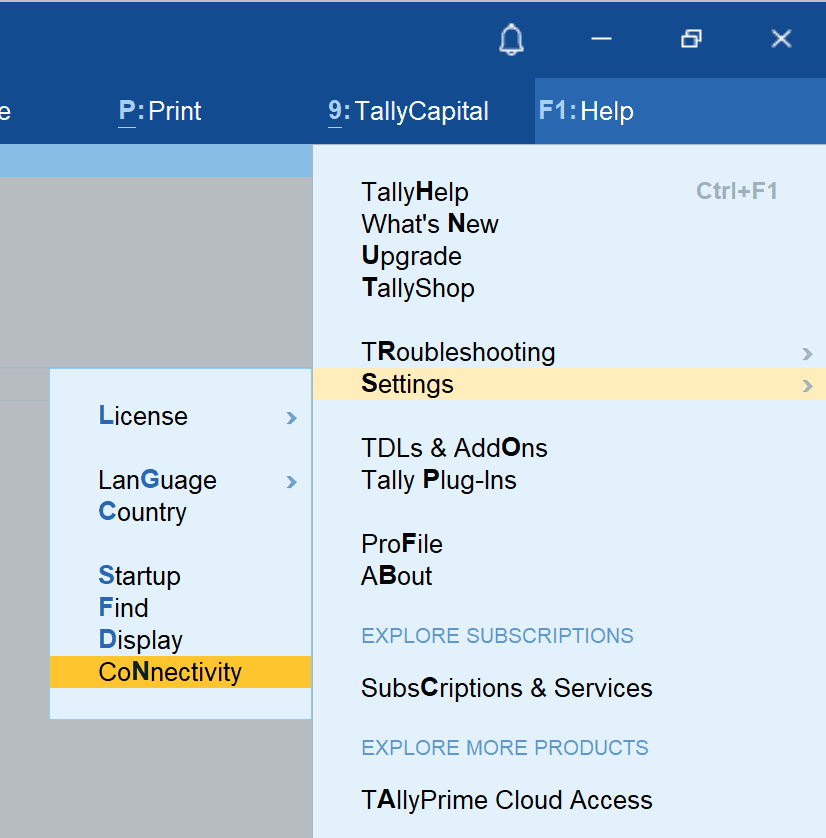
Help (F1) → Settings → Connectivity Use these three settings
Open Client/Server configuration and set TallyPrime acts as Both, Enable ODBC to Yes, and Port to 9000. Save, then return to your company.
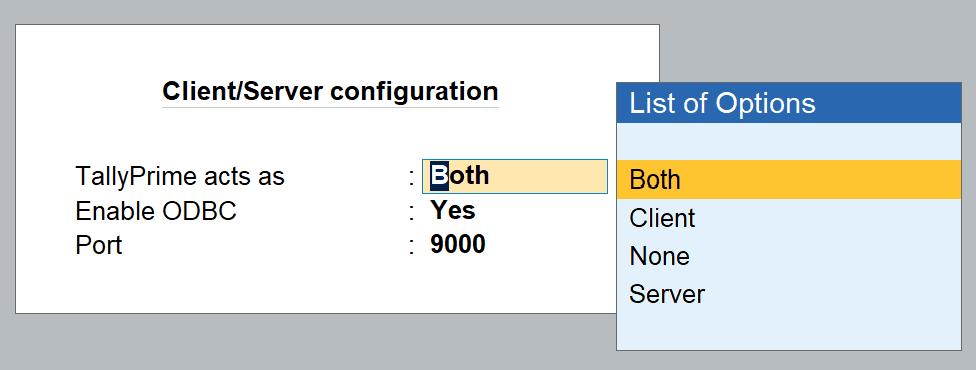
TallyPrime acts as Both · Enable ODBC Yes · Port 9000 Open the company
Load the company AshnaAI should work on and leave TallyPrime running.
Connect Tally in AshnaAI
On the same computer, open AshnaAI, go to Integrations, open Tally, and click Connect. When the card says Connected, you can start with invoices, GST, rules, or audit in chat.
Frequently asked questions
How is this better than other Tally tools?
Most add-ons import one file or dump a report. AshnaAI processes 1,000+ files in minutes, posts invoices with GST (IGST, CGST, SGST), follows your posting and ledger-mapping rules, reconciles GST at scale, and can audit 10,000+ files in about 10 minutes — then asks you only when something is unclear.
Who is this for?
Chartered accountants, accountants, bookkeepers, and finance teams anywhere TallyPrime is used — CA firms, outsourced accounting, and in-house teams that need speed without giving up control of the books.
Can I set my own posting and ledger rules?
Yes. You can say “for all UPI transactions, post to Ledger UPI ledger,” or map insurance company transactions to a ledger under INSURANCE_GROUP with conditions such as balance or ledger name. AshnaAI applies those rules on every run.
What happens if someone deletes a ledger or voucher by mistake?
AshnaAI blocks accidental ledger and voucher deletes. If you still need to undo other work, AshnaAI keeps a 7-day backup from the action date so you can retrieve it.
Why do I need AshnaAI Desktop?
Your Tally company stays on your computer. Desktop is the AshnaAI app that sits next to TallyPrime so the AI can work on those books without uploading the company to the cloud.
Which Tally settings should I use?
In Client/Server configuration set TallyPrime acts as Both, Enable ODBC to Yes, and Port to 9000. Then open the company and connect Tally from Integrations.