
How to connect TallyPrime for Tally automation
Install the AshnaAI desktop app, open the Tally connector, and keep writes on review. The browser alone cannot post to TallyPrime. GST answers will not invent tax treatment.
AshnaAI
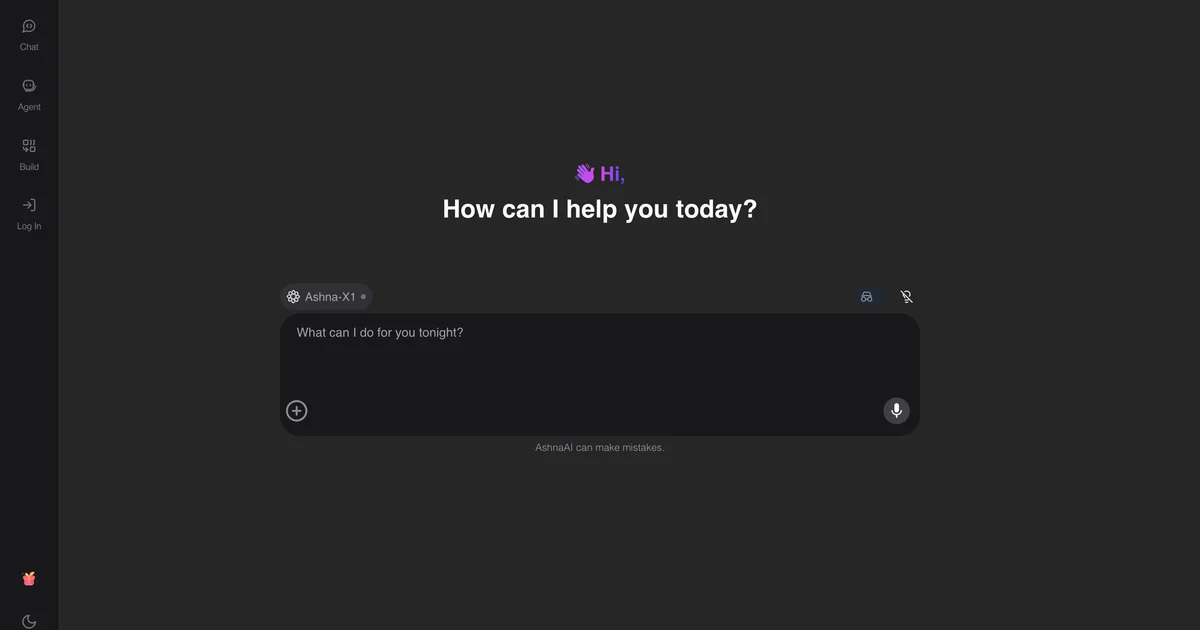
Install desktop first
Download the desktop app from ashna.ai/download, install it, and sign in with the same account. TallyPrime must be open on that machine.
First prompt should be a read
Ask for ledgers, a voucher search, or a GST exception list. Confirm the company name before any write.
Treat review as success
A Need-review result is the product working. Completing the mapping is your job. Read the Tally research article for why writes are designed that way.
Try it now
Open AshnaAI and run this in a new chat. New accounts start at app.ashna.ai/signup.
Frequently asked questions
- How do I connect TallyPrime to AshnaAI?
- Download the desktop app, sign in, open the Tally connector, and confirm the company is visible. Then run a read-only prompt.
- Why does the web app say Tally cannot run?
- Execution is on the desktop bridge. Install or open the desktop app and retry.
- Will AshnaAI file my GST return?
- No. It can pull reports and flag exceptions. It will not infer tax treatment or certify a return.
- What if a ledger is missing?
- Leave it in review. Map it yourself. Auto-create is off on purpose.
- Where is the connector reference?
- Use https://www.ashna.ai/connectors/tally for setup fields and https://www.ashna.ai/download for the app.
Tags
Related
- AshnaAI for Accountants
- Tally
- Human in the Loop
- Guardrails
- how to post tally gst invoices in ashna ai
- how to create tally ledger mapping rules in ashna ai
- how to reconcile gst in tally with ashna ai
- how to audit tally books with ashna ai
- tally balance sheet automation
- tally roc ca sign ready excel
- gst reconciliation software for tally
- tally automation without a chatbot
- tallyprime desktop bridge for gst and controlled writes
Try this in AshnaAI. Create a free account and install the desktop app when the workflow needs local access.
Found this article helpful? Share it with your network.