
How to use the AshnaAI API in OpenClaw, Cline, and Codex
Pick one tool — Codex CLI, OpenClaw, Cline, or Continue. Install only that tool, create an AshnaAI API key, and point it at https://api.ashna.ai/v1/api. You do not need the other tools.
AshnaAI
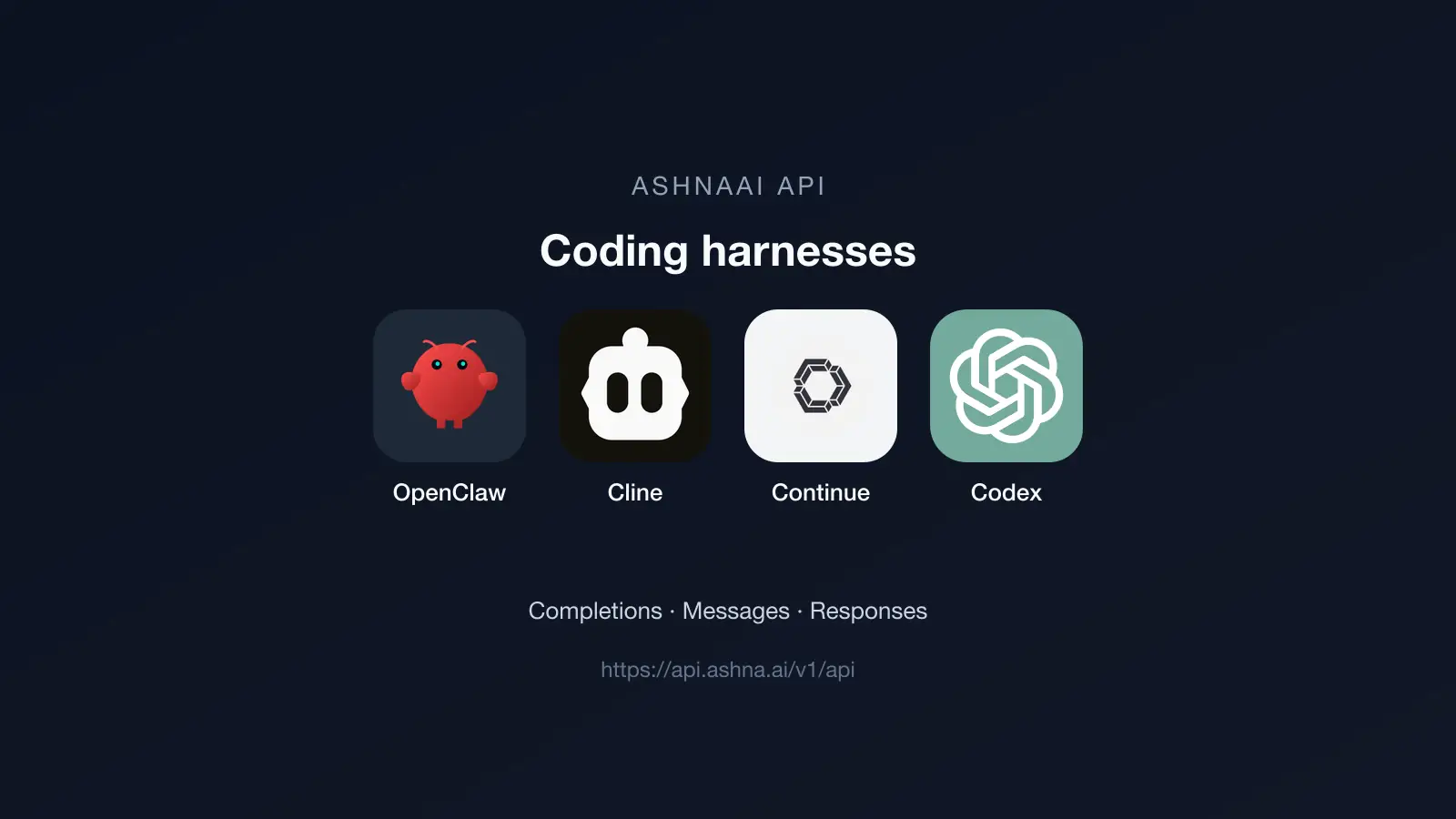
Pick one tool — skip the rest
This page has four independent guides. Choose Codex CLI, OpenClaw, Cline, or Continue. Install only that tool. You do not need the others to talk to the AshnaAI API. Cursor and VS Code have their own posts: How to use the AshnaAI API in Cursor and How to use the AshnaAI API in VS Code.
| If you use | Open this section | Path |
|---|---|---|
| Codex CLI only | Codex CLI | /responses |
| OpenClaw only | OpenClaw | /chat/completions, /v1/messages, or /responses |
| Cline only | Cline | /chat/completions |
| Continue only | Continue | /chat/completions |
Create an AshnaAI API key (all tools)
Do this once. Then jump to the single section for your tool. The same key works if you later try a second harness — you still only install that second tool when you want it.
- Open Account → API.
- Choose Create key and name it after the one tool you will use first.
- Copy the secret immediately. It is shown once.
- Keep it out of git and a public config file.
Codex CLI
Use this section only if you want Codex. Official install: Codex CLI getting started. Codex posts to /responses — not /chat/completions.
▸ curl -fsSL https://chatgpt.com/codex/install.sh | sh▸ codex --versionpowershell -ExecutionPolicy ByPass -c "irm https://chatgpt.com/codex/install.ps1 | iex"//chatgpt.com/codex/install.ps1 | iex"codex --version▸ npm install -g @openai/codex▸ codex --version▸ brew install --cask codex▸ codex --version▸ export OPENAI_BASE_URL="https://api.ashna.ai/v1/api"▸ export OPENAI_API_KEY="paste-your-key-here"▸ cd /path/to/your/project▸ codex$env:OPENAI_BASE_URL="https://api.ashna.ai/v1/api"//api.ashna.ai/v1/api"$env:OPENAI_API_KEY="paste-your-key-here"cd \path\to\your\projectcodex▸ set OPENAI_BASE_URL=https://api.ashna.ai/v1/api▸ set OPENAI_API_KEY=paste-your-key-here▸ cd \path\to\your\project▸ codex- Install Codex with the command for your OS. Confirm with codex --version.
- Export OPENAI_BASE_URL=https://api.ashna.ai/v1/api and OPENAI_API_KEY in the same shell.
- Confirm the base URL includes /v1/api.
- Start codex from that shell and send one turn. It posts to /v1/api/responses.
- If you see 401, recheck the key. If you see 404, recheck the base URL.
OpenClaw
Use this section only if you want OpenClaw. Skip it for Codex, Cline, or Continue. Installer: OpenClaw install. Provider fields: OpenClaw providers.
▸ curl -fsSL https://openclaw.ai/install.sh | bash▸ openclaw --versioniwr -useb https://openclaw.ai/install.ps1 | iexopenclaw --version▸ npm install -g openclaw@latest --allow-scripts=openclaw▸ openclaw --version- Install OpenClaw with the command for your OS. Confirm with openclaw --version.
- Open the OpenClaw provider settings.
- Set the provider base to https://api.ashna.ai/v1/api
- Paste the AshnaAI API key.
- Pick one mode: openai-completions (/chat/completions), anthropic-messages (/v1/messages), or openai-responses (/responses).
- Send one turn on that path.
Cline
Use this section only if you want Cline in VS Code or a VS Code fork. Skip it for Codex or OpenClaw. Official notes: Cline OpenAI Compatible. Cline posts to /chat/completions.
▸ code --install-extension saoudrizwan.claude-dev▸ cursor --install-extension saoudrizwan.claude-dev▸ npm i -g cline- Install the Cline extension with the command for your editor.
- Open Cline provider settings.
- Choose the OpenAI Compatible provider.
- Set API Base to https://api.ashna.ai/v1/api
- Paste the AshnaAI API key.
- Set Model to glm-5.3-flash or another catalog id.
- Send one Cline turn.
Continue
Use this section only if you want Continue. Skip it for Codex, OpenClaw, or Cline. Official notes: Continue OpenAI. Continue posts to /chat/completions.
▸ code --install-extension continue.continue▸ curl -fsSL https://raw.githubusercontent.com/continuedev/continue/main/extensions/cli/scripts/install.sh | bashirm https://raw.githubusercontent.com/continuedev/continue/main/extensions/cli/scripts/install.ps1 | iex▸ npm i -g @continuedev/cli- Install the Continue extension with the VS Code CLI.
- Open the Continue model config.
- Add an OpenAI-compatible model.
- Set apiBase to https://api.ashna.ai/v1/api
- Set apiKey to your AshnaAI secret.
- Set model to glm-5.3-flash or another catalog id.
- Save and send one chat.
Try it now
HTTP reference: AshnaAI API docs and chat completions.
- Create a key in Account → API.
- Open only the section for Codex, OpenClaw, Cline, or Continue.
- Install that one tool, set https://api.ashna.ai/v1/api and send one turn.
Frequently asked questions
- Do I need OpenClaw or Cline to use Codex with AshnaAI?
- No. Codex CLI is standalone. Install only Codex, then set OPENAI_BASE_URL and OPENAI_API_KEY. Skip the OpenClaw, Cline, and Continue sections.
- Which section should I follow?
- Follow only the heading that matches the tool you already want: Codex CLI, OpenClaw, Cline, or Continue. Each section is a complete setup.
- How do I install Codex CLI on macOS, Linux, or Windows?
- macOS/Linux: curl -fsSL https://chatgpt.com/codex/install.sh | sh. Windows PowerShell: powershell -ExecutionPolicy ByPass -c "irm https://chatgpt.com/codex/install.ps1 | iex". Then export OPENAI_BASE_URL=https://api.ashna.ai/v1/api and OPENAI_API_KEY.
- What base URL do these harnesses share?
- https://api.ashna.ai/v1/api Codex uses /responses. Cline and Continue use /chat/completions.
- How do I install OpenClaw, Cline, or Continue?
- OpenClaw: curl -fsSL https://openclaw.ai/install.sh | bash (or iwr on Windows). Cline: code --install-extension saoudrizwan.claude-dev. Continue: code --install-extension continue.continue. Install only the one you use.
Tags
Related
Try this in AshnaAI. Create a free account.
Found this article helpful? Share it with your network.