
How to convert SVG to PDF
Attach a SVG file and ask for PDF. When the conversion is supported, you get a downloadable file in chat.
AshnaAI
What you'll do
Attach a SVG file and ask for PDF. When the conversion is supported, you get a downloadable file in chat.
This guide walks through SVG to PDF in AshnaAI. You stay in chat. You do not need a separate desktop of buttons for each file job.
Before you start
Open AshnaAI and start a new chat.
Have your image file ready to attach, or use a file you already uploaded in this chat.
How to SVG to PDF
Follow the steps below in order. Confirm in chat before AshnaAI sends, posts, or writes to Tally.
Step 1. Open chat
Sign in at https://app.ashna.ai and start a new chat.
Step 2. Attach the image
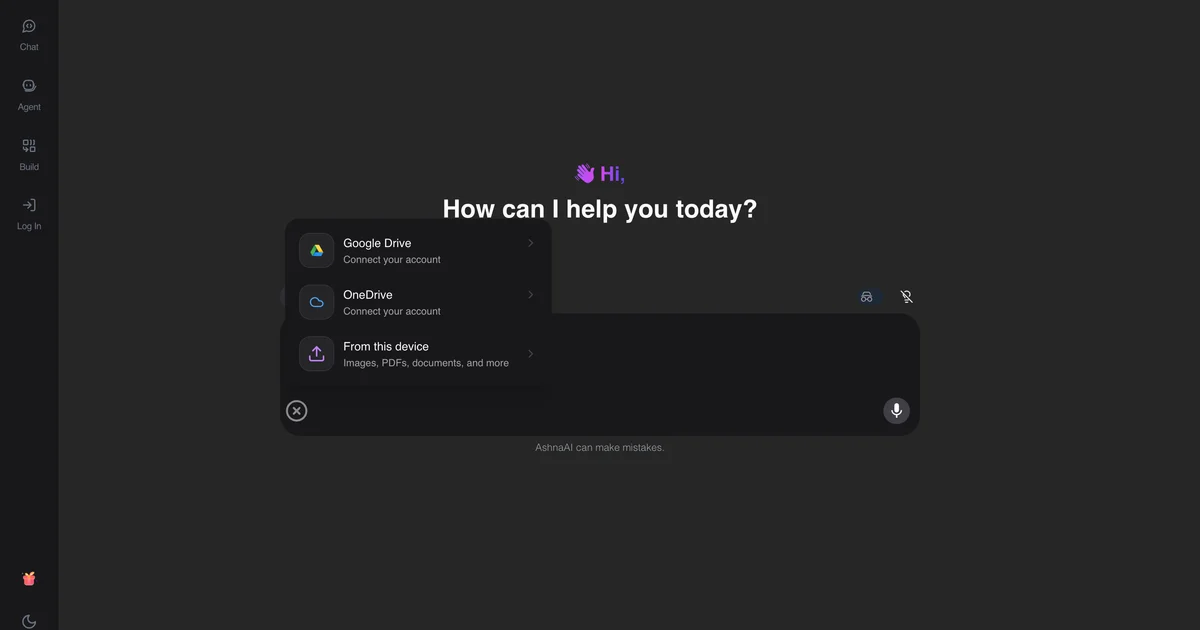
Upload the SVG file.
Step 3. Ask for the format
Ask: convert this to PDF.
Step 4. Download
Download the converted file from the chat.
Keep in mind
This is an image-to-PDF convert, not the research-to-deck pipeline.
AshnaAI will not convert PDF to Word, PDF to Excel, or compress a PDF. Those jobs are not available. Use merge, split, unlock, protect, and the other how-tos linked below.
Related guides
Also read convert an image to pdf.
Also read convert svg to png.
More images how-tos live on Image converter.
Try it now
Open app.ashna.ai and run this job in a new chat. New accounts can start from app.ashna.ai/signup.
Frequently asked questions
- Can AshnaAI convert SVG to PDF?
- Yes, when the runtime supports that pair.
- Do I need Photoshop?
- No. Ask in chat.
- Can I resize at the same time?
- Yes. Say width, height, quality, and fit.
- What about RAW camera files?
- Not supported server-side.
- Is HEIC always available?
- HEIF/HEIC decode depends on Sharp/libvips on the server.
Tags
Related
Try this in AshnaAI. Create a free account.
Found this article helpful? Share it with your network.