
How to flatten a PDF form
After fields are filled, ask AshnaAI to flatten the form so values are no longer editable fields.
AshnaAI
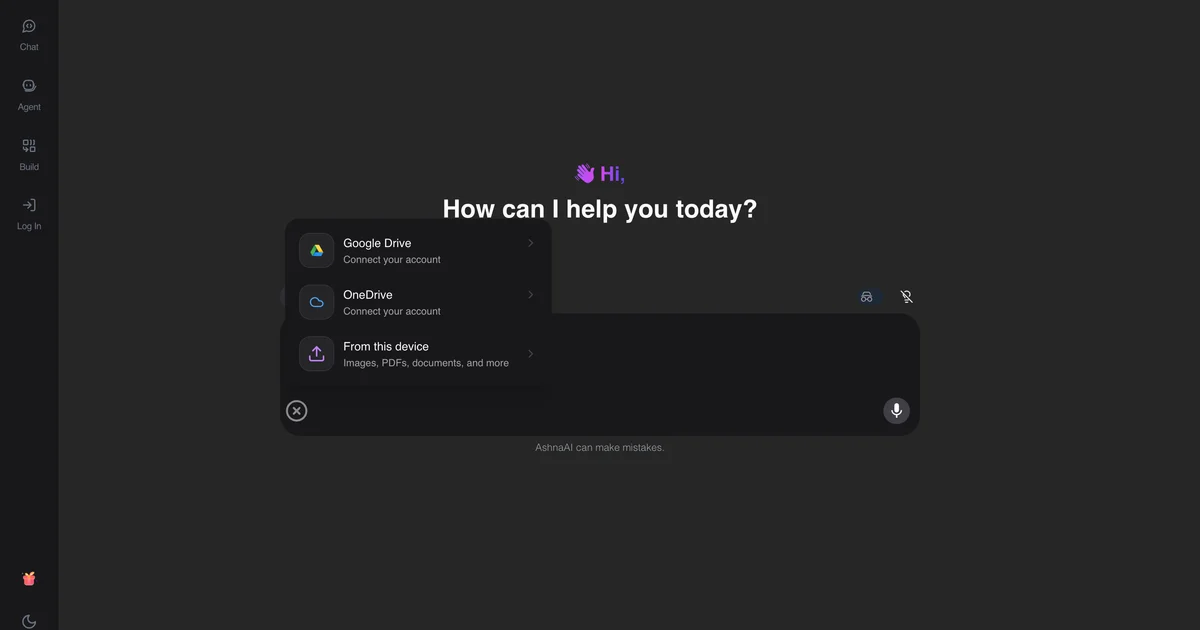
What you'll do
After fields are filled, ask AshnaAI to flatten the form so values are no longer editable fields.
This guide walks through flatten PDF form in AshnaAI. You stay in chat. You do not need a separate desktop of buttons for each file job.
Before you start
Open AshnaAI and start a new chat.
Have your pdf file ready to attach, or use a file you already uploaded in this chat.
How to flatten PDF form
Follow the steps below in order. Confirm in chat before AshnaAI sends, posts, or writes to Tally.
Step 1. Open chat
Sign in at https://app.ashna.ai and start a new chat.
Step 2. Attach or point at the file
Attach the filled form, or use the file you just filled.
Step 3. Ask for the job
Ask: flatten this form.
Step 4. Download the result
When AshnaAI finishes, download the file from the chat. That download is your flattened PDF.
Keep in mind
Flattening is not encryption. Use protect if you need a password.
AshnaAI will not convert PDF to Word, PDF to Excel, or compress a PDF. Those jobs are not available. Use merge, split, unlock, protect, and the other how-tos linked below.
Related guides
Also read fill a pdf form.
Also read protect a pdf with a password.
More PDF how-tos live on PDF editor and converter.
Try it now
Open app.ashna.ai and run this job in a new chat. New accounts can start from app.ashna.ai/signup.
Frequently asked questions
- What does flatten mean?
- Form fields become static page content.
- Should I flatten before sending to a client?
- Yes if they should not edit the fields.
- Does flatten add a password?
- No.
- Can I unflatten later?
- Only if you kept the unflattened file.
- Do I flatten a plain PDF?
- Only if it has form fields. Otherwise skip this.
Tags
Related
Try this in AshnaAI. Create a free account.
Found this article helpful? Share it with your network.