
How to schedule an AI agent
After the agent runs cleanly in chat, open the agent card and set a schedule. The agent uses the same tools and permissions you already attached.
AshnaAI
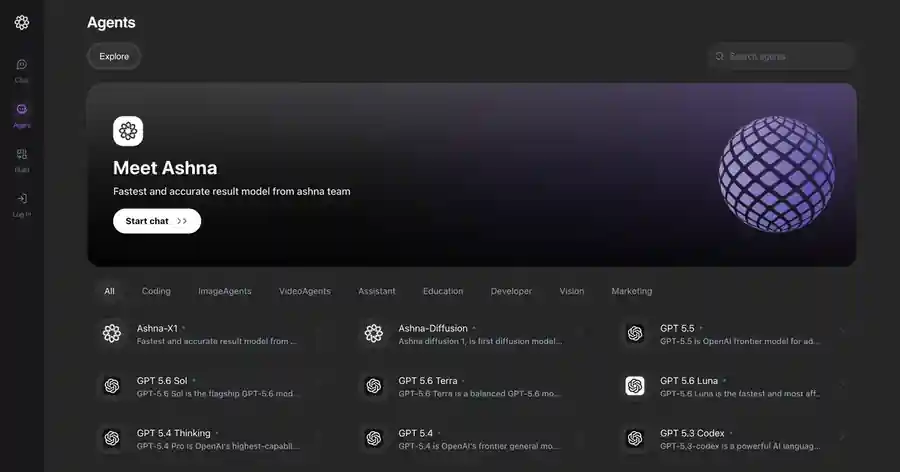
What you'll do
After the agent runs cleanly in chat, open the agent card and set a schedule. The agent uses the same tools and permissions you already attached.
This guide walks through schedule AI agent in AshnaAI. You stay in chat. You do not need a separate desktop of buttons for each file job.
Before you start
Open AshnaAI and start a new chat.
How to schedule AI agent
Follow the steps below in order. Confirm in chat before AshnaAI sends, posts, or writes to Tally.
Step 1. Create the agent
Follow the create-and-use-agents guide until one manual run is clean.
Step 2. Open the agent card
Find schedule on the same card as Embed on Website.
Step 3. Set the timetable
Name the cadence and keep the job narrow.
Step 4. Watch the first run
Read the first scheduled output before you widen the job.
Keep in mind
A schedule does not add new permissions. Connectors must already work in a manual run.
Related guides
Also read create and use agents.
Also read embed an ashna ai agent on your website.
More agents how-tos live on No-code AI agents.
Try it now
Open app.ashna.ai and run this job in a new chat. New accounts can start from app.ashna.ai/signup.
Frequently asked questions
- Can I schedule an AshnaAI agent?
- Yes, from the agent card after a clean manual run.
- Is this Zapier?
- The agent uses AshnaAI tools and connectors, not a Zapier zap.
- Can I embed instead?
- Yes. See the embed guide.
- Will it send Slack every hour?
- Only if Slack is connected and the spec says so.
- Desktop Tally on a schedule?
- The desktop app must be running for Tally jobs.
Tags
Related
Try this in AshnaAI. Create a free account.
Found this article helpful? Share it with your network.