
How to send WhatsApp media
Ask AshnaAI to send an image, document, or other media on WhatsApp Business. Use a media id or a public https link.
AshnaAI
What you'll do
Ask AshnaAI to send an image, document, or other media on WhatsApp Business. Use a media id or a public https link.
This guide walks through send WhatsApp media in AshnaAI. You stay in chat. You do not need a separate desktop of buttons for each file job.
Before you start
Open AshnaAI and start a new chat.
Connect the account first. The setup steps are in this connector guide. Wait until it shows as connected.
How to send WhatsApp media
Follow the steps below in order. Confirm in chat before AshnaAI sends, posts, or writes to Tally.
Step 1. Sign in
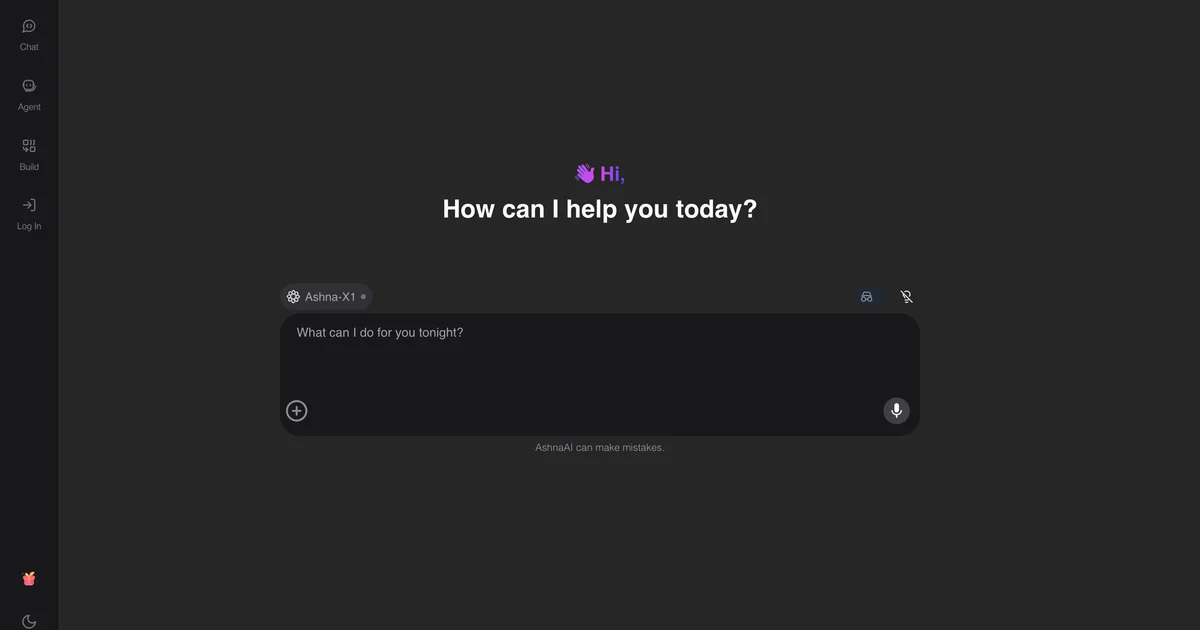
Open https://app.ashna.ai sign in, and start a new chat.
Step 2. Connect WhatsApp Business
Open Integrations and connect WhatsApp Business. Finish the provider sign-in and wait until the account shows as connected.
Step 3. Ask for the job
Ask: send this invoice PDF to +91… on WhatsApp as a document.
Step 4. Confirm writes
If the job sends, posts, or changes a record, confirm in chat before AshnaAI executes the write.
Keep in mind
Media URLs must be publicly reachable. This is still outbound send.
Related guides
Also read send a whatsapp template.
Also read download gmail attachments.
More WhatsApp how-tos live on WhatsApp automation.
Try it now
Open app.ashna.ai and run this job in a new chat. New accounts can start from app.ashna.ai/signup.
Frequently asked questions
- Can AshnaAI send whatsapp media?
- Yes, after you connect WhatsApp Business. Ask in chat at https://app.ashna.ai
- Do I connect WhatsApp Business first?
- Yes. Follow https://www.ashna.ai/connectors/whatsapp-business if you still need to connect, then return to this guide.
- Will AshnaAI send or publish without asking?
- Writes wait for a task you start. Confirm in chat when the action leaves AshnaAI.
- Is this the same as ChatGPT browsing my account?
- No. AshnaAI uses the connector you authorized, with the permissions you granted.
- Can I put this on an agent?
- Yes. Attach the same connector to an agent after the chat path works.
Tags
Related
Try this in AshnaAI. Create a free account.
Found this article helpful? Share it with your network.